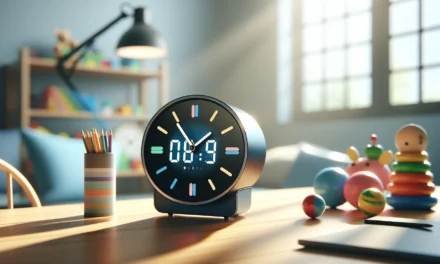
This guide talks about the interactive teaching clock that makes learning time both simple and fun. It shows off analog and digital displays and includes useful tools for parents and teachers. The article gives some tips alongside one handy Amazon product to help you put the clock to work in lively, practical ways.
Table Of Contents
- Features and Benefits of the Interactive Teaching Clock
- Educational Strategies Using the Clock
- Integration with Digital Resources and Apps
- Practical Tips for Parents and Educators
- Supplementary Tools and External References
- Conclusion
- Frequently Asked Questions (FAQs)
- Sources
Key Takeaways
- The interactive teaching clock makes learning about time fun and engaging, helping kids grasp both analog and digital concepts easily.
- Hands-on tools like protractors and timers are built-in features that can help kids understand angles and measurements while developing their motor skills.
- Using engaging apps like Classroomscreen and Classplayground alongside the clock can boost classroom activities, adding a tech twist to learning.
- Bright Mind Tools: A Parent’s Guide to Tech-Supported STEM Learning offers valuable tips for parents to blend tech into their children’s learning routines, making education more relevant and enjoyable.
- Don’t forget to explore practical resources on Amazon. There are many great learning tools out there to support STEM skills, making home study engaging and effective.
Features and Benefits of the Interactive Teaching Clock
Analog and Digital Displays
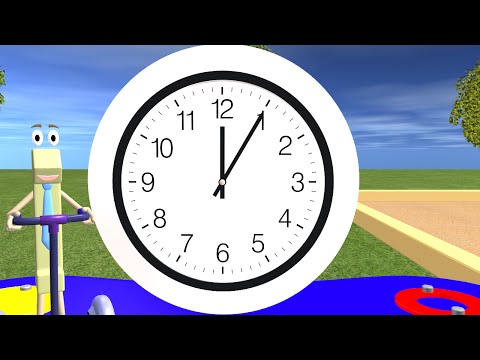
The interactive teaching clock stands out because it offers both analog and digital displays. Teachers and parents can choose to use one or both formats, which helps students understand time from different perspectives. The analog face—with its movable hands—shows time in a traditional format, while the digital display reinforces numeric concepts and quick reading. This dual display method is particularly useful when introducing the basics of time, as learners see how the two formats relate to each other visually.
- The analog setup improves the understanding of clock mechanics
- The digital display supports fast recognition of time
- Combining both formats aids in bridging traditional and modern representations
Customizable Colors and Mode Selectors
One of the exciting features is the range of customizable colors for different parts of the clock. Users can adjust the background color, the clock face, and the hands, making it an engaging tool for environments that support diverse learning needs. Additionally, mode selectors allow users to switch between different teaching subjects, such as time, angles, or fractions. This flexibility encourages personalization so that lessons can be adjusted to suit a classroom’s theme or personal preference.
- Custom color settings offer consistency with classroom decor
- Mode selectors help tailor the learning experience to different subjects
- Easy-to-use interfaces simplify the setup for heavy-use educational sessions
Built-In Tools: Protractor, Timer, and Angle Measurement
Beyond its time-telling functions, this interactive clock includes several built-in tools that support a range of math and science topics. A protractor feature is integrated so that students can learn about angles while positioning the clock’s hands. The timer function, which can be set for short tasks or longer learning exercises, is a convenient way for educators to monitor activities. Moreover, the angle measurement tool allows for quick analysis of the space between the hour and minute hand—a direct way to showcase geometry in a hands-on manner.
- The protractor tool enables a discussion on angles and geometry
- A built-in timer keeps exercises structured and time-bound
- Angle measurement feature bridges the connection between abstract concepts and tangible examples
Educational Strategies Using the Clock
Helping Students Learn Time
When teaching time, the interactive clock offers a practical, hands-on approach. Educators can walk through the steps of setting the correct time using the movable hands, reinforcing concepts like quarter past or half past. Parents at home can use the clock for daily practice sessions, turning learning into a routine activity.
Step-by-step method for teaching time:
– Set the clock to a specific time and ask the child to move the hands
– Identify the digital reading together and discuss how it matches the analog display
– Use the timer function to play matching games where a time is given verbally and the child sets the clock accordingly
Employing this approach supports both auditory and visual learners and deepens the overall understanding of time as a concept.
Incorporating Fractions and Angles into Learning
The clock’s design also helps students visualize fractions and angles. When the hands divide the clock face, they create fractions of the whole circle—the same idea behind how fractions work in everyday measurements. Using the built-in protractor mode, teachers can show what a 90-degree angle really means on the clock face. This concrete representation makes abstract ideas accessible.
A suggested activity:
– Position the minute hand to show 15, 30, or 45 minutes
– Discuss how these numbers represent fractions of an hour (1/4, 1/2, and 3/4)
– Use the angle measurement tool to measure the angle between the two hands and compare it with known angle values
This method gives students a hands-on experience that weaves arithmetic into the study of geometry seamlessly.
Fostering Fine Motor Skills Through Interactive Use
The clock’s design is interactive, encouraging students to physically adjust the movable hands. This activity helps in developing fine motor skills alongside learning. For younger children, simple maneuvers such as twisting a knob to move the hand can boost hand-eye coordination. Older students can benefit from aligning the hands precisely during complex exercises, training focus and dexterity.
- Easy-to-grasp hands for small fingers
- Interactive play that encourages movement and practice
- Visual and tactile interaction builds a comprehensive understanding of time
Parents and educators can set up challenge games where children change the hands of the clock rapidly for a series of times, gradually increasing both speed and precision.
Integration with Digital Resources and Apps
Ready-to-Teach Activities
Many digital resources now offer activities that complement the interactive clock. Websites and apps offer lesson plans and guided activities focusing on time-telling, measuring angles, and incorporating fractions seamlessly into everyday lessons. These digital resources encourage self-directed study and make the transition from manual practice to digital validation smoother.
To maximize this potential, educators can download lesson templates that include both offline and online exercises. This dual approach caters to different learning styles and enables parents to adapt the lessons for home use as well.
Self-Directed Learning Apps and Interactive Telling Time Tools
Self-directed learning apps like Interactive Telling Time provide a digital companion to the physical clock. These apps usually include interactive modules that allow children to practice setting times, measure angles, and even compete in time-based challenges. They help demystify the concepts by providing visual feedback when the correct time positions are set.
A step-by-step guide on using an app:
– Download the Interactive Telling Time application on a compatible device
– Set up a routine where the child practices a new time each day
– Use the in-app timer to test the child’s ability to adjust the clock hands according to the challenge
– Compare the results between the physical clock and what is seen in the app
Using these apps in combination with physical manipulatives creates a blended learning environment that reinforces abstract concepts.
Utilizing External Resources like Classroomscreen and Classplayground
External websites provide further interactive opportunities. For instance, Classroomscreen offers a digital dashboard that can integrate with the teaching clock. Teachers can display time-related activities and even link the clock to class games that use the interactive screen. Similarly, Classplayground offers themed activities where the teaching clock becomes a centerpiece for various STEM exercises.
- Classroomscreen integrates time-telling exercises with classroom management tools
- Classplayground presents fun, interactive challenges that pair well with the clock
- These resources provide varied and dynamic teaching methods that support differentiated learning
Educators are encouraged to explore these sites, adapting their activities to seamlessly integrate physical and digital resources.
Practical Tips for Parents and Educators
Classroom Management and Group Activities
Managing a classroom while using an interactive teaching clock requires clever strategies and group-focused activities. One effective method is to center a warm-up activity around the clock each day. This can involve randomly selecting a time for the class to set on their individual clocks, encouraging collaboration and quick thinking.
Some classroom management tips:
– Organize a “time challenge” game where students split into teams and race to set the correct time
– Use the timer feature during group activities to foster a sense of urgency and fair play
– Implement a rotation system where different students lead the time-telling segment, building leadership and accountability skills
Step-by-step group activity:
– Begin with an “ice-breaker” where each student takes a turn setting the clock to a time announced by the teacher
– Split into small groups and assign a specific time for them to set on a digital or physical clock
– Use the built-in timer and protractor tools to guide a discussion on how the positions of the hands create both time and angles
These techniques not only improve time-telling skills but also strengthen teamwork and communication.
Highlighting a Top Amazon Product
One highly recommended resource available on Amazon is the Interactive Teaching Clock. This specific product is designed with education in mind, featuring robust build quality and a multitude of learning modes. With adjustable colors, easy-to-move hands, and built-in measurement tools, it is a practical addition to any classroom or home setting. Its design helps streamline complex topics into manageable learning activities, and its competitive pricing makes it an affordable option for many families.
Key features include:
– Dual display options for analog and digital time-telling
– Customizable settings to match different learning topics and classroom aesthetics
– Integrated tools that support lessons in mathematics, geometry, and fine motor skills
– Durability and ease of use, making it a top pick amongst parents and educators alike
This product has received positive reviews for its hands-on approach and the additional clarity it brings to abstract lessons. It remains a favorite for those looking to merge technology and traditional learning aids effectively.
Tips for Using the Clock in a Home Environment
For parents trying to reinforce classroom lessons at home, the interactive teaching clock offers many opportunity avenues. A consistent daily routine using the clock not only helps children become more comfortable with time measurement but also bridges the gap between school and home learning.
Some home-based tips:
– Set aside a specific time each day for a “clock-setting challenge”
– Incorporate clock activities during transitions between play and study time
– Leverage digital companion apps to track progress and celebrate improvements
– Use the clock as a visual timer during tidy-up sessions, snack times, or bedtime routines
A practical home exercise:
– Have the child set the clock for ‘meal time’ and then compare how long they take to get ready
– Use the angle measurement tool to let them explore how different hand positions create unique designs on the clock face
– Encourage free play where children invent their own “clock stories,” merging time with creative storytelling
These activities foster independence and ensure that learning becomes part of everyday life.
Supplementary Tools and External References
Timers and Random Name Pickers
Apart from the interactive teaching clock, supplementary tools add another layer of engagement to learning activities. Websites like Online-Stopwatch provide reliable timers and random name pickers that can be used during classroom activities and home settings. For example, teachers can use random name pickers during group work to ensure fair participation, or they can set interval timers to reinforce the concept of time management.
Suggested uses for these tools:
– Use the online timer to set duration for math drills or reading sessions
– Randomly select students for participation in interactive lessons
– Combine the physical clock with these tools to create multi-layered learning games that involve both digital and tactile elements
These external tools are easy to use and offer immediate results, reinforcing the principles of time management in a fun and competitive manner.
Additional Tips from Education Blogs and Resource Sites
Numerous blogs and online resource sites offer extra guidance on integrating technology into early STEM education. These sources provide templates, instructional guides, and downloadable resources that help parents and teachers alike. Blogs from seasoned educators often include personal anecdotes, step-by-step lesson breakdowns, and practical advice that can be adapted for use with the interactive teaching clock.
Some recommended resources include:
– Educational blogs that focus on incorporating technology in learning
– Teachers’ resource sites which offer free lesson plans and interactive activities
– Community forums where educators share experiences using interactive tools in diverse classroom settings
Parents can also find tips on balancing screen time with hands-on learning in these blogs, ensuring that their children benefit from a well-rounded approach to STEM education.
Comparative Table of Tools
Below is a comparative table highlighting a few key tools used alongside the interactive teaching clock:
- Feature Comparisons:
Tool/Resource Key Features Best For Interactive Teaching Clock Dual display, customizable colors, built-in protractor and timer Time, angles, fractions, fine motor skills Interactive Telling Time App Digital interaction, guided challenges, instant feedback Self-directed, digital reinforcement Classroomscreen Digital dashboard, interactive whiteboard features Classroom display and group activities Classplayground Themed interactive challenges, diverse STEM activities Engaging students in practical learning Online-Stopwatch Accurate timers, random name picker, minimal interfaces Time management exercises, classroom games
This table allows educators and parents to easily evaluate which resources fit best with their teaching methods and learning objectives.
Practical Implementation Steps
- Identify a daily time slot where lessons on time and angles can be integrated
- Use the interactive teaching clock to present an open-ended challenge (set the clock to match a given time)
- Follow up with an online timer from Online-Stopwatch to add urgency to the task
- Incorporate apps like Interactive Telling Time to validate the physical settings with digital feedback
- Periodically assess progress by comparing group activities with personal practice sessions
By mixing structured activities with these supplementary tools, both parents and teachers can help children absorb the concepts of time, angles, and motor skills in an organic, engaging manner.
For further reading on blending technology into everyday learning, consider exploring additional articles on the Bright Mind Tools website. These resources offer a wealth of practical tips designed to make STEM learning accessible and inspiring for all school-age children.
Conclusion
We’ve talked about how the interactive teaching clock makes learning time fun and practical. Key takeaways include its dual displays, helped by simple tips for parents, and hands-on activities that boost learning and engagement. It shows clear steps for integrating tech and everyday tasks in STEM studies, so give it a try! Let Bright Mind Tools | guide your journey.
Frequently Asked Questions (FAQs)
How can Bright Mind Tools help me integrate tech into my child’s STEM learning?
Bright Mind Tools offers simple guidance and tips that blend everyday tech into learning routines. The advice is practical, making it easier for parents to enhance STEM skills without overcomplicating things. Check out their tips on blending tech and play for a smoother educational experience.
What are some everyday tech tools that support STEM activities?
Many tools like interactive apps, digital timers, and even basic robots can spice up your child’s learning routine. For example, you might explore interactive clocks and timers available on Amazon. These tools help make abstract STEM concepts more concrete and engaging.
How can parents keep up with the latest trends in tech-supported STEM learning?
Staying updated just means checking reliable sources like Bright Mind Tools and other educational blogs. Subscribing to newsletters, reading blogs, and even joining parent groups can boost your awareness on upcoming tech trends in education. Always look for firsthand experiences and updated resources online.
Can using technology really boost my child’s problem solving and creativity?
Yes, technology supports learning by offering quick feedback and puzzles that challenge the mind. When kids interact with fun apps or gadgets, they tend to explore and experiment in ways that traditional methods might not inspire. This kind of tech-supported learning helps build a strong foundation for creative problem solving.
How does “Bright Mind Tools: A Parent’s Guide to Tech-Supported STEM Learning” support parents in educating their kids?
This guide is all about making tech approachable. It offers parents insights on choosing the right tools—including one featured Amazon product each article—to complement classroom learning with at-home experiments. Not only does it share practical steps, but it also brings together expert views and real-life success stories to motivate parents.